
How to Use the IRUSU Play VR Plus Headset with a Mobile Phone
Want to experience virtual reality on your smartphone? Follow this step-by-step guide to set up your IRUSU Play VR Plus mobile VR headset, configure the viewer profile, position your phone correctly and explore compatible VR apps, 360-degree videos and virtual experiences.
Check Your Mobile Phone Compatibility
Before using your IRUSU Play VR Plus headset, check the following requirements:
- Screen size: 4.5 to 6.9 inches.
- Maximum phone dimensions: approximately 170 × 80 × 12 mm.
- Required sensor: a gyroscope sensor for compatible motion-controlled VR experiences.
- Phone fit: your smartphone must fit securely inside the headset.
- VR content: use apps and videos that support mobile VR or the selected viewer profile.
Important: A phone's screen size alone does not guarantee compatibility. Check its dimensions, sensor specifications and the requirements of the VR app you want to use.
Not sure whether your phone supports mobile VR? Check mobile VR compatibility here .
How to Set Up the IRUSU Play VR Plus Headset
Follow these steps to get started with your mobile VR headset.
1Open the Google Cardboard App
Install or open the compatible Google Cardboard app on your smartphone, if available for your device.
App availability and setup options may vary depending on your phone and operating system.
2Scan the VR Viewer QR Code
Use the viewer setup or QR scanning option available in the Cardboard app to scan the QR code supplied with your headset. This helps configure the viewer profile for your headset.
If the QR code supplied in the package does not work with your newer phone, try the alternative viewer QR code shown below.
View QR Code3Set Up the Viewer Profile
Follow the available on-screen instructions to complete the viewer configuration. Once configured, open a compatible VR app or supported VR video to test the experience.
Watch the setup video for additional guidance:
Watch the Google Cardboard setup video .4Position Your Smartphone
Remove your phone's back case if it prevents the phone from fitting securely. Place the phone in the headset's phone holder and position it centrally.
Make sure the phone is secured before putting on the headset. Do not force an oversized phone into the holder.
5Adjust the Lenses and Use the Touch Button
The IRUSU Play VR Plus features lens adjustment to help you obtain a clearer view and a touch button for supported on-screen interactions.
Adjust the lenses until the image looks comfortable and clear. The touch button's functionality depends on the app and its control support.
6Explore Mobile VR Apps
Discover compatible VR games, educational experiences, virtual tours and 360-degree content for your smartphone.
Explore the Best Mobile VR Apps7Watch Videos and Movies in VR
To watch supported videos stored on your phone, try the IRUSU VR Cinema Player , where compatible with your device.
For additional VR content, explore IRUSU VR Zone . Check the app listings for current availability and compatibility.
IRUSU Play VR Plus Viewer QR Code
If the QR code included with your headset package does not work, try scanning the alternative viewer QR code below using the compatible viewer setup option in the Google Cardboard app.
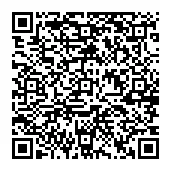
Note: This code is intended for viewer profile configuration. It does not install VR apps or guarantee that every smartphone is compatible with the headset.
Troubleshooting Common VR Setup Problems
The QR code will not scan. What should I do?
Make sure the complete code is visible, your camera can focus on it, and you are using a compatible viewer setup option. If the package code fails, try the alternative QR code displayed on this page.
The VR image looks blurry. How can I improve it?
Centre your phone in the holder, adjust the lenses, and check that the app is configured for the correct viewer profile. If the image remains unclear, confirm that your phone fits correctly and that the content supports mobile VR.
My phone fits, but the VR experience does not respond to movement.
Check whether your smartphone has a gyroscope sensor and whether the app supports motion tracking. Not all phones or VR apps offer the same functionality.
Where can I find more VR apps?
Browse our guide to the best VR apps for Android and iPhone for more information about compatible mobile VR experiences.
Watch the VR Setup Tutorial
Follow the video below for guidance on configuring the Google Cardboard viewer. The app interface may differ depending on your device and app version.
Need Help with Your IRUSU Play VR Plus Headset?
If you experience problems during setup or have questions about compatibility, submit the feedback form below. Include your phone model and a description of the issue so the team can better understand your concern.
You can also explore more products and information on the official IRUSU website.